Nov 23, 2026
5 Tips for Keeping Windows Server 2016 Upgrades on Track in the Final Weeks
Windows Server 2016 support ends January 12, 2027. Here are five tips to help MSPs prioritize remaining upgrades, keep cutovers on schedule, and spot which clients may miss the deadline.

Windows Server 2016 reaches the end of extended support on January 12, 2027. If you’ve been working through upgrades across your client base, the final stretch is where the schedule gets tight. One client still hasn’t approved a cutover, another upgrade slipped a week, and your engineers are balancing project work with holiday PTO and day-to-day support.
Start with the upgrades still open. Which are ready to go? Which are waiting on a decision? And how many can your team realistically finish by January 12?
Key takeaways
- Check which upgrades are ready for cutover and what’s holding up the rest.
- Recheck engineering capacity and client change windows through January 12.
- Give clients a clear deadline to confirm their window, and flag likely misses early.
What changes on January 12?
Microsoft’s extended support for Windows Server 2016 ends on January 12, 2027. After that, clients still running it will need applicable Extended Security Updates coverage to continue receiving security updates. If an upgrade is at risk of missing the deadline, raise it with the client now so you have time to discuss coverage and confirm the next available upgrade window.
1. Use one checklist for the remaining upgrades
Before you commit to a cutover, check what still needs to happen. Has the client approved the downtime? Are backups verified? Is the application vendor available if you need them? Does everyone know who’s responsible for testing and who makes the call if you need to roll back?
If you already have an upgrade template, use it to review what’s left across clients. Give each outstanding item an owner and a due date so you can see what needs to happen to keep the cutover on the calendar.
2. Sort the remaining upgrades by readiness
Group open upgrades into three buckets: ready to schedule, waiting on a client decision, and blocked by technical work or a third party. Complexity still matters when you estimate the work, but readiness tells you which upgrades can move this week.
A straightforward upgrade can sit for days waiting on approval. Meanwhile, a more involved migration with a confirmed window and engineering coverage may be ready to go. If a window opens up, you’ll know which client you can move forward.
3. Recheck what your team can finish by January 12
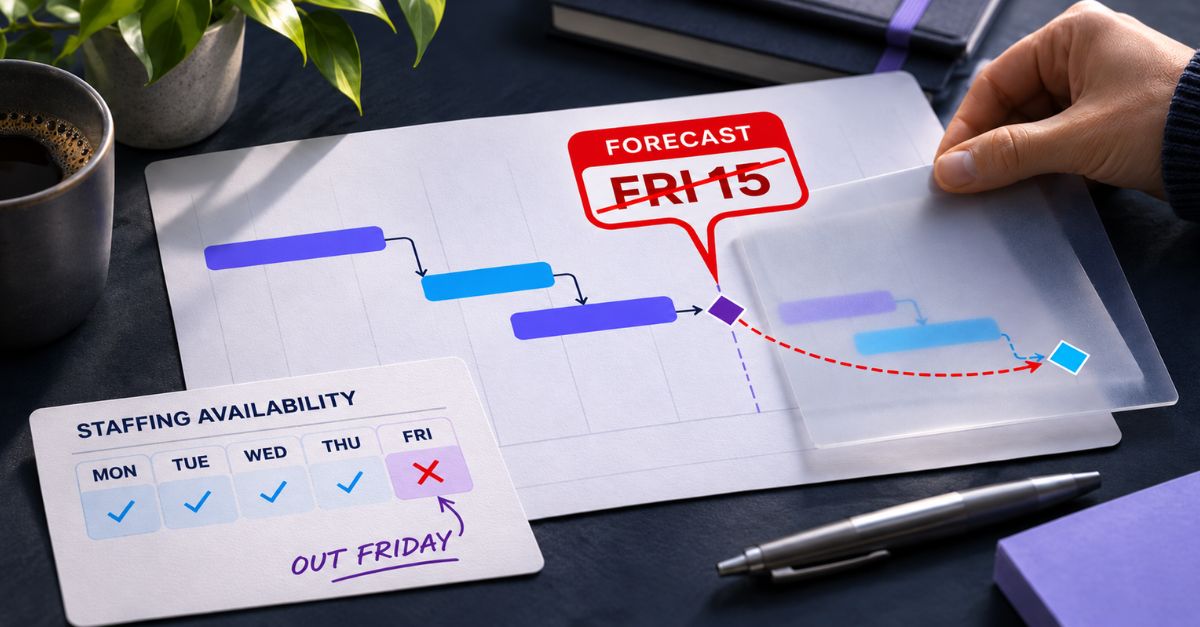
Put the remaining upgrades on one schedule and compare the work with the engineering time you actually have. Account for holiday PTO, support coverage, client change freezes, and post-cutover testing. An engineer who can handle a Friday night cutover may already be booked for something else when the client needs help Monday morning.
Looking at all the upgrades together makes it easier to spot weeks where the same people are booked across multiple clients. It also gives you time to move work or tell a client their target date is at risk.
4. Confirm engineering coverage before locking in cutovers
As each upgrade gets close, confirm who’s covering the cutover, testing, and follow-up. When a client pushes a date, check what else is booked for the same engineers before offering another window.
In Moovila, you can build upgrades from a shared template with task durations and dependencies, then see how a date change affects the rest of the project and where it creates conflicts with other work. That matters when one client’s reschedule can affect another client’s cutover.
5. Give clients a decision deadline
If you’re waiting on approval, tell the client exactly what you need, which window is available, and when they need to respond to hold it. For example:
We can hold the proposed cutover window through Thursday. Please confirm by then that your team can accommodate the downtime. If we need to release the window, we’ll confirm the next available date and let you know whether it falls after January 12.
Use the same approach with clients who are already scheduled but still owe you a sign-off, an application contact, or a blackout date. The sooner you know what might move, the more options you have.
Frequently asked questions
When does Windows Server 2016 support end?
Microsoft’s extended support for Windows Server 2016 ends on January 12, 2027. Mainstream support ended in 2022.
What if an upgrade can’t be completed by January 12?
Tell the client as soon as you know the date is at risk. Document which servers will still be running Windows Server 2016, discuss whether Extended Security Updates are available for those systems, and agree on the next feasible upgrade window.
Does every client need an in-place upgrade?
The right approach depends on the server, the applications it runs, and the client’s environment. Some servers are better candidates for a rebuild or a move to the cloud. If the approach is still undecided, assign an owner and a decision date so you can confirm the scope and schedule.
Give every open upgrade a next step
This week, give every open upgrade a next action, an owner, and a date. If it needs a client decision, ask for it now. If it has a cutover window, confirm who’s covering it. If it’s likely to miss January 12, flag it while there’s still time to discuss options with the client.
Book a demo to see how Moovila helps MSPs track upgrade schedules and engineering capacity across clients.